vaspider:

alihsi:

abductedbyreality:

inkahootz18:

littlebluboxx:

silentauroriamthereal:

nofreedomlove:

image

image

image

imageimage

image

image

image

Source

“Image Credit: Carol Rossetti

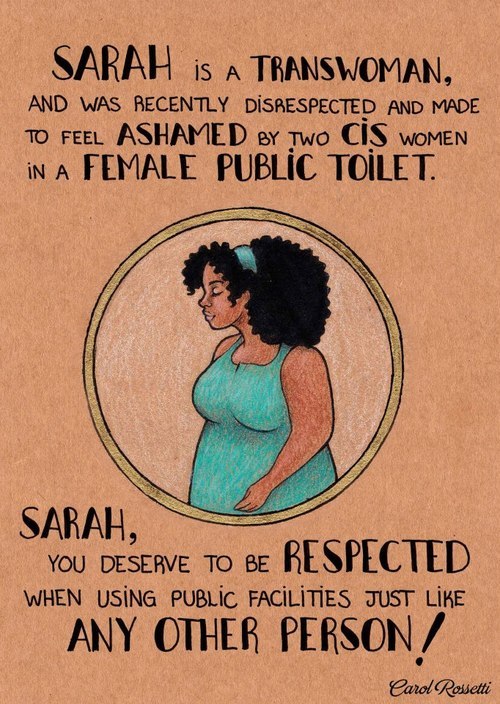
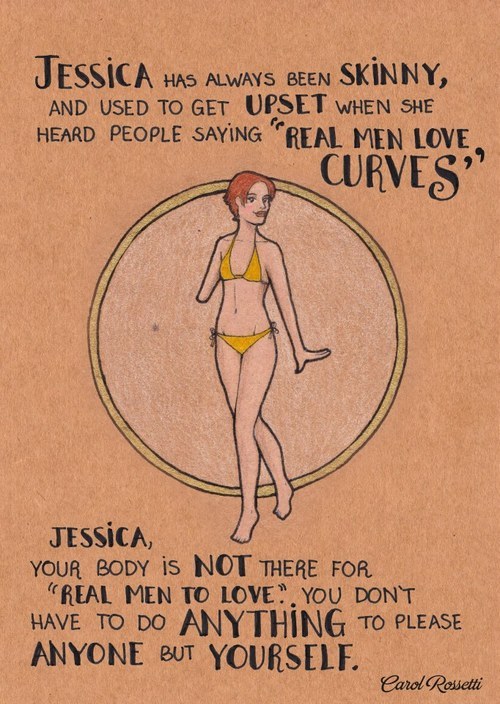
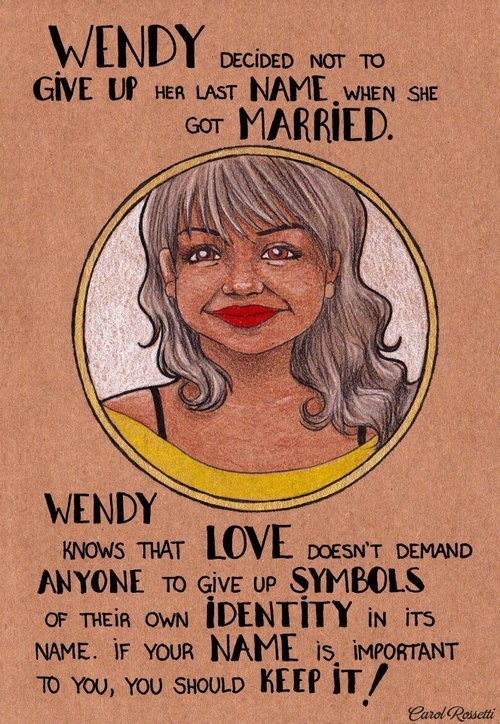
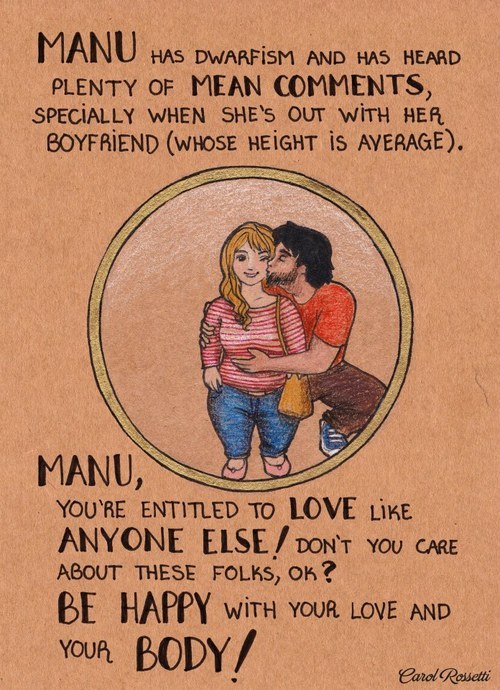
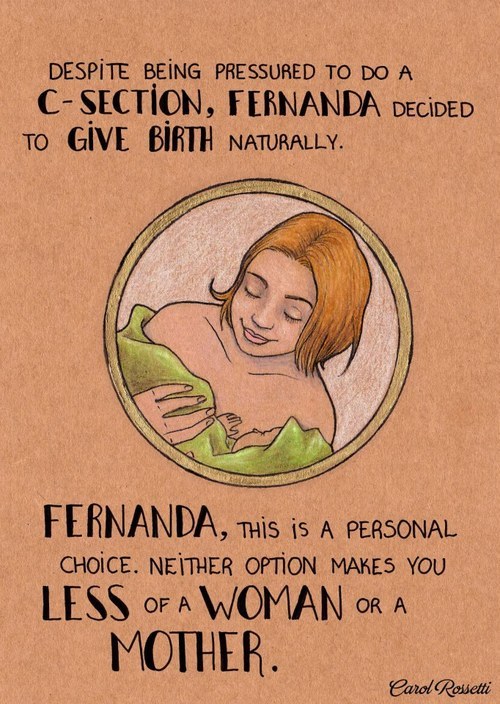
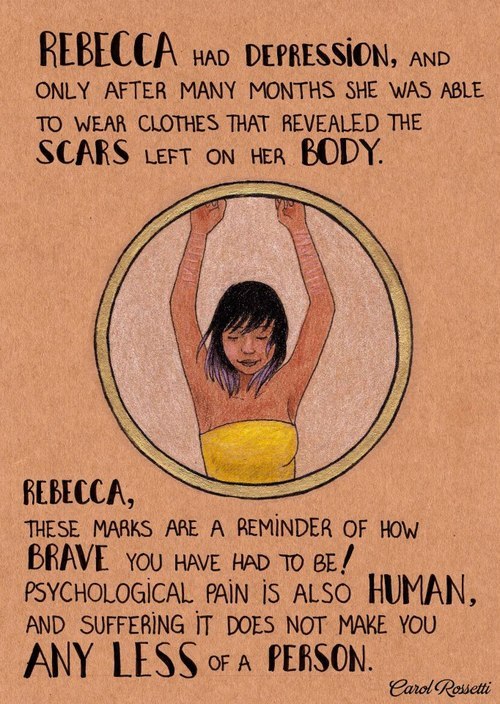
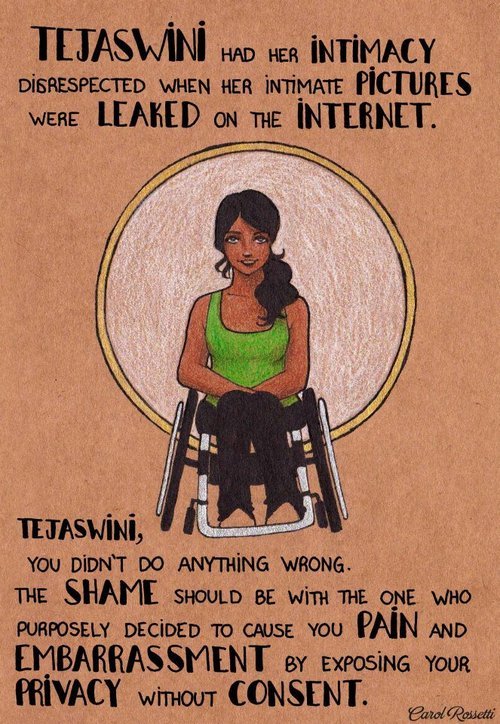
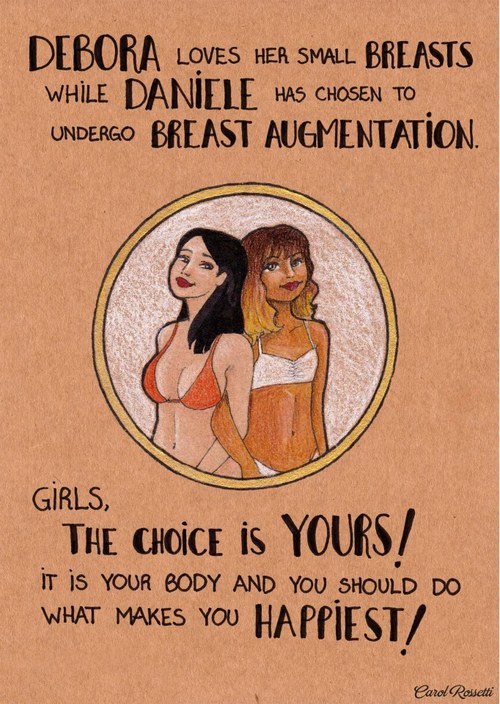
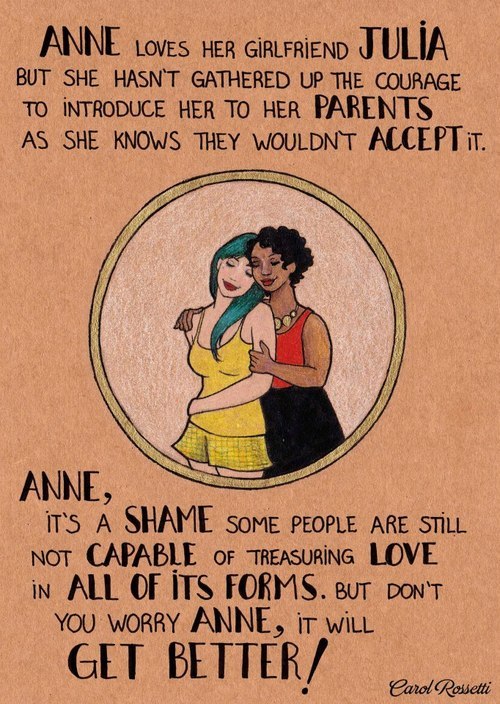
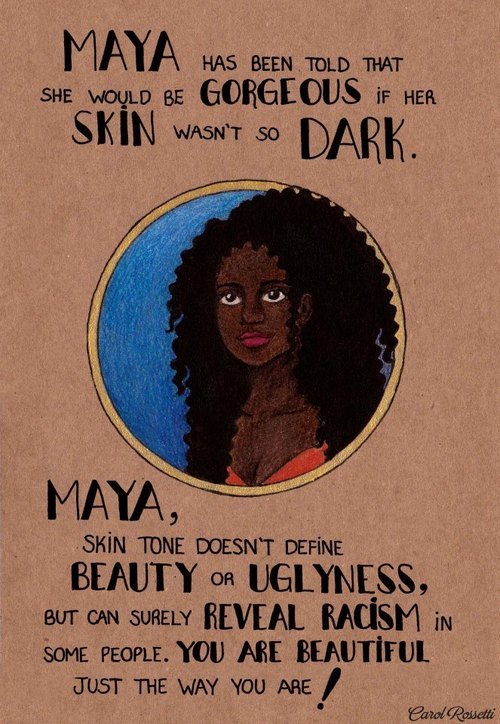
When Brazilian graphic designer Carol Rossetti began posting colorful illustrations of women and their stories to Facebook, she had no idea how popular they would become. 

Thousands of shares throughout the world later, the appeal of Rosetti’s work is clear. Much like the street art phenomenon Stop Telling Women To Smile, Rossetti’s empowering images are the kind you want to post on every street corner, as both a reminder and affirmation of women’s bodily autonomy. 

“It has always bothered me, the world’s attempts to control women’s bodies, behavior and identities,” Rossetti told Mic via email. “It’s a kind of oppression so deeply entangled in our culture that most people don’t even see it’s there, and how cruel it can be.”

Rossetti’s illustrations touch upon an impressive range of intersectional topics, including LGBTQ identity, body image, ageism, racism, sexism and ableism. Some characters are based on the experiences of friends or her own life, while others draw inspiration from the stories many women have shared across the Internet. 

“I see those situations I portray every day,” she wrote. “I lived some of them myself.”

Despite quickly garnering thousands of enthusiastic comments and shares on Facebook, the project started as something personal — so personal, in fact, that Rossetti is still figuring out what to call it. For now, the images reside in albums simply titled “WOMEN in english!“ or ”Mujeres en español!“ which is fitting: Rossetti’s illustrations encompass a vast set of experiences that together create a powerful picture of both women’s identity and oppression.

One of the most interesting aspects of the project is the way it has struck such a global chord. Rossetti originally wrote the text of the illustrations in Portuguese, and then worked with an Australian woman to translate them to English. A group of Israeli feminists also took it upon themselves to create versions of the illustrations in Hebrew. Now, more people have reached out to Rossetti through Facebook and offered to translate her work into even more languages. Next on the docket? Spanish, Russian, German and Lithuanian.

It’s an inspiring show of global solidarity, but the message of Rossetti’s art is clear in any language. Above all, her images celebrate being true to oneself, respecting others and questioning what society tells us is acceptable or beautiful.

“I can’t change the world by myself,” Rossetti said. “But I’d love to know that my work made people review their privileges and be more open to understanding and respecting one another.”

From the site: All images courtesy Carol Rossetti and used with permission. You can find more illustrations, as well as more languages, on her Facebook page.

Oooh. I reblogged a partial version of this recently but I didn’t know how many more there were! I LOVE these!

OK SO THERE ARE TONS MORE OF THESE OF THE ARTISTS FB PAGE. GUYS THESE ARE AWESOME.image

image

image

image

image

image

LOOKimage

image

image

image

ATimage

image

image

image

THESEimage

image

LETS APPLAUD CAROL ROSSETTI EVERYONEimage

image

image

image

image

 image

image

image

image

image

image

image

image

LOOK

Um, these are like the best thing ever.

Just slow clap it out. ;w;

So many more!

I love all of these so much. Every time I see them I smile.

I want a print of the Amanda one, I think.

the-future-now:

the-future-now:

BREAKING: Vine is shutting down

Twitter is set to shut down looping video app Vine after its sustained failures to turn the app into a profitable part of their business. Twitter will begin to sunset the app, and will stop supporting the app, allowing for uploads and updates “in the coming months.” But what about all the videos already there?

follow @the-future-now

Update: Here’s how to save your Vines.

1. Paste a Vine video into your browser.

2. Add “qq” in front of the domain name.

3. Select a version to download.

4. Save the video to your computer.

5. Enjoy your video for all eternity. 

@maybesomeoneterrible

My 3 Unfortunately-Secret Programs for Illustrators

sasharjones:

There are a few programs I use on an almost daily basis as an artist and illustrator which I find invaluable, but that seem to be unfortunately more secret than they deserve to be. Which is too bad, because they solve a lot of small workflow problems that I think a number of people would find useful!

I’ll keep this list limited to my big three, but it is organized in order of usefulness. (And incidentally of compatibility, as the latter two are Windows-only. Sorry! Please do still check out PureRef though, Mac users.)

1. PureRef

PureRef is a program specifically designed to make it easier to view, sort, and work with your references. I actually put off downloading it initially because it seemed redundant– couldn’t I just paste the refs into my PSD files? Indeed, the only real barrier to working with PureRef is that learning the keyboard shortcuts and the clicks to move around the program takes a little while. But getting over that hump is well worth it, because it has some distinct advantages over trying to organize your refs in your actual art program.

Firstly, you’re no longer bogging down your actual PSD file with extra layers, nor having to fight with said layers at all– PureRef has no layer panel, so you never have to scramble to grab the right one. All images you paste into the program retain their original resolution data, so you can resize, rotate, crop, etc as needed without distortion. If you find yourself needing to adjust the values, color, etc of a ref image, you can just copy paste it into Photoshop, make your adjustments, and copy paste it back into PureRef.

The other great advantage is that you can toggle the program as ‘Stay On Top’ and keep it above Photoshop (or whatever else)– which was always a problem when trying to make a reference collage in a separate PSD file. I find that I just don’t look at my references as much as I should when they are on a second monitor, and this solves that problem.

I’ve used it religiously for about a year now, creating a new PureRef file for every illustration I do, as well as a few for specific characters, cultures, or settings in personal projects. As you can see in the example above, I like to sort my images into little clusters or ‘islands’ of specific content, so that I can easily scroll out to see the entire reference map, then zoom in to the relevant cluster easily.

There is one big tip I would suggest for using this program, if you have the harddrive space: As soon as you get it, turn on the ‘Embed local images in save file’ option. This will make your PureRef files bigger, but you’ll never have to deal with a ‘broken link’ if you move around the source files you originally dragged in.

2. Work Timer

This is such a simple little app that it doesn’t have a very formal name, though I think of it as ‘Work’ or ‘Work Work’ (for some reason.) It’s a timer that counts when your cursor is active in any (of up to 3) program you set it to count for, and stops counting when you change programs or idle. No starting, pausing, stopping, or forgetting to do any of those three things.

I use this one to accurately track my hours, both to inform myself and for commissions or other client work. At the end of a work session, I take the hours counted and add them to the hours I’ve already spent on that image in a spreadsheet.

I have it set to count my three art programs (Photoshop, Painter, and Manga Studio), so based on the settings I use, it doesn’t count time that I spend doing relevant work in my browser (such as looking up an email to double check character descriptions or ref hunting), so to counter that, I set the ‘Timeout’ option in it’s menu to 360. This means it will count to 360 seconds of cursor inactivity before it considers me idle and stops counting. Since it instantly stops counting if you switch to ‘non-work’ a program, I figure this extra time just about cancels out relevant time that it ignores in ‘non-work’ programs by counting an extra minute or so when I walk away from the computer to grab some water or what-have-you.

3. Carapace

I use Carapace the least of these three, since my work doesn’t often have a need for creating perspective lines. But when there is architecture involved in something, this proves invaluable in simplifying that process.

Carapace lets you copy paste an image into it, and then drop in vanishing points and move them around to create perspective lines. (Though you’ll want to scale down your full res drawing or painting a bit to avoid lagging the program.) Like with PureRef, fighting the shortcuts is the worst part of it, though for myself it’s more of an issue in this program because I don’t use it often enough to remember them. Still, it gets the job done, and it’s easy to adjust the points to feel things out until you get them ‘right’. Then you just copy and paste the grid back into your art program and you’ve got that information to use as need be on its own layer.

Of course, using Carapace isn’t a replacement for actually knowing how perspective works– you still have to have a sense of how far apart the vanishing points should be placed to keep things feeling believable. But it sure does save you a lot of trouble once you do have that knowledge.

So, there are my big three recommendations for programs to help your art workflow. I hope people find them useful– if you do, please share so that they climb a little higher out of their unwarranted obscurity! And if you’ve got a favorite tool like this that I didn’t cover, feel free to share it in the comments. I know I’m curious to see what else is out there, too. Also, if Mac users have any suggestions for programs that fill similar functions, feel free to share there as well!

My Website  •  Store  •   Commissions  •  Instagram   •  Twitter  •  Deviantart

things that make me feel better about myself that I think a lot of people forget

jewlsies:

those little things on ur nose aren’t blackheads, don’t try and get rid of them they’re sebaceous filaments and they’re permanent and literally everyone has them

every girl has that little pouch of fat on her lower tummy, despite what magazines try n show u, you have important organs there that need to be protected don’t try and get rid of ur pouch

ur body is smarter than u think and it knows what to do when u eat more than normal. one bad day, or even week, of eating poorly isn’t gonna ruin anything at all I pinky promise

if u think u look good up until u try taking a selfie, it’s not ur fault – our faces are asymmetrical and when u see ur face flipped it will look unnatural to u, since u don’t see it that way when u look in the mirror. to everyone else it looks perfectly fine

no one’s stomach looks the same at 8pm as it does at 8am. no one has a chiseled six pack after a day of eating, not even the super fit people u see on tumblr, because ur stomach naturally expands after eating and expecting to have a flat tummy before bed is very unrealistic

no one notices if the bags under ur eyes are bad today. no one pays attention to the bump in ur nose or the zit on ur chin or the piece of hair that u missed when u were straightening. literally no one notices these things except you so stop worrying about it ur gonna be fine

sometimes u just gotta get over urself

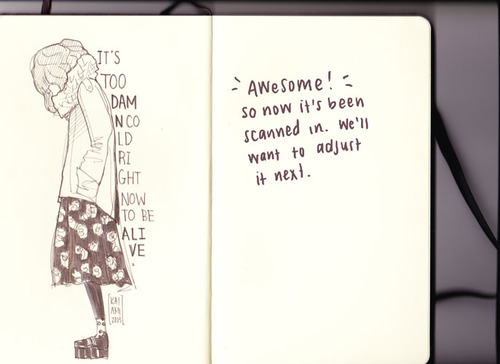
Tutorial: from paper to digital.

kaiami:

Hey ya’ll! I’m not much of a tutorial person, but this was a technique that I learned from Syuzuki, one of my favorite artists back in the day, when I was 13. I memorized the technique and it’s been one of the most useful things I can do on photoshop. This was something that really helped me, and I hope that it will be useful for even some of you.

In this tutorial, I will be going step by step how I take something from my sketchbook and color it on photoshop.

image

image

image

image

image

image

image

image

image

image

image

image

image

image

image

image

image